depicus
changing the digital world one bit at a time...


Download this article and associated code
Summary
Extending the Active Directory Schema is often seen as a black art best left for software developers, but Enterprise Administrators and Domain Architects can benefit from extending the schema by relieving themselves of some of the more mundane tasks in domain administration.
One of those mundane tasks is setting up printers for users. But with a new attribute in the schema and a bit of Active Directory Services Interface scripting tasks that took a few minutes now take a few seconds and can be fully automated.
Extending the Schema
A word of warning before we start, developing extensions for the Active Directory on a production domain shouldn't be attempted. While most types of development allow you to back out and undo what you have done, changes to the Active directory are permanent. I would suggest a development server to test any deployment before moving onto a production server.
We need to do a bit of preparatory work before we can extend the schema. For all sorts of reasons the Active Directory is read only on all domain controllers, Microsoft call this the safety interlock. You will need to find the schema master Flexible Single Master Operation (FSMO) role holder for the domain. This will be easy on a single domain controller domain but in a larger organisation you will need to track down the FSMO. Microsoft has kindly provided a TechNet article on "How to Find FSMO Role Holders (Servers)" in article Q234790. You could of course steal the schema master FSMO role as described in "How to View and Transfer FSMO Roles in the Graphical User Interface" article number Q255690 or "Using Ntdsutil.exe to Seize or Transfer the FSMO Roles to a Domain" in article number Q255504.
Manually adding to the schema
Now we have the schema master it's time to install some of the tools that we need to extend the schema. Go to Add/Remove programs and you should see an entry for "Windows 2000 Administration Tools". If the estimated size is 300/400kb's then you will need to install the tools. If you click change then be prepared for a wealth of options, install or remove. If you have a fast mouse like mine and accidentally hit remove or it doesn't even appear in the Add/Remove Programs settings don't worry the file itself can be found in the "System32" folder called "adminpak.msi" and you can run it from that directory.
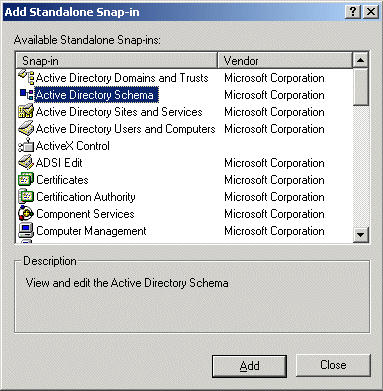
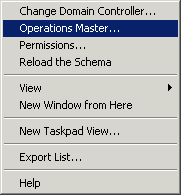
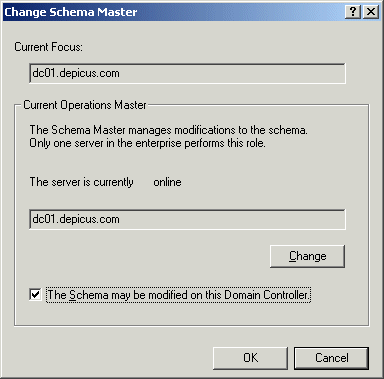
Once the tools are installed we need to load the Active Directory Schema snap-in for the Microsoft Management Console (MMC). From the run command or a command prompt type "mmc" to get a new console. Then from the menu "console" select "Add/Remove Snap-in" and then select add to get you a list of available snap-ins, see Figure 1 . Once you have added the Active Directory Schema snap-in you can check you are on the correct domain controller by right-clicking the Active Directory Schema icon and selecting "Operations Master", see Figure 2 . You can now enable writing to the Active Directory Schema by checking the “may be modified on this Domain Controller” as shown in Figure 3 . It may be wise once you have finished extending the schema to uncheck this box to return the Domain Controller back to read only.
We are now ready to extend the schema. The schema has two objects which can be added, classes and attributes. Classes are like tables and attributes are like columns, in this case we are adding a new attribute and adding it to an existing class.
In the right pane of the Active Directory Schema select and right
click the "Attributes" folder then select "Create Attribute". You
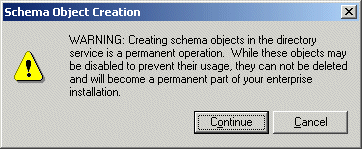
should get a warning message telling you that adding objects to the
schema are permanent, see
Figure 4
, click Continue.
Unfortunately the "Create New Attribute" dialog box doesn't allow
you to fully configure all the parts our new attribute needs.
However what the Active Directory Schema Snap-in lacks in
functionality it makes up for in educational information. You can
view the Active Directory in a tree view and explore the
relationship between objects and attributes. We are going to add a
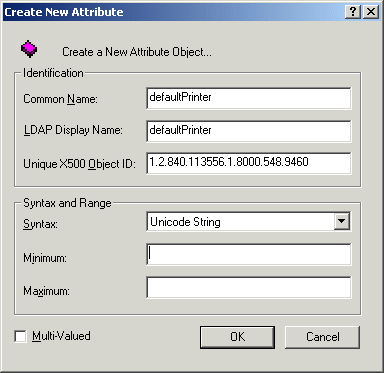
new attribute as shown in
Figure 5
. The Common Name and LDAP display
names are the same in this example purely for demonstration
purposes, the choice of names is up to you. One thing that isn't
your decision is the Object ID. This number must be unique and there
are two options available, either apply for a "Private Enterprise
Number" then create your OID by self-extending this Private
Enterprise Number. You can get a Private Enterprise Number from
either
http://www.iana.org/ or
http://web.ansi.org/
or you could use Microsofts Active Directory Naming Registration
site at
http://msdn.microsoft.com/.
The OID number shown in
Figure 5
is assigned so please remember that
you can only use it for this extension to the schema. One last thing
to note is that the Syntax must be set to "Unicode String", we
aren't utilising the minimum or maximum values or the multi-value
this time.
While we have created our attribute we still need to add a few more
pieces of information, some cosmetic others to establish security
for our new attribute. To add a description for our new attribute
locate it in the Attributes folder and double click to bring up the
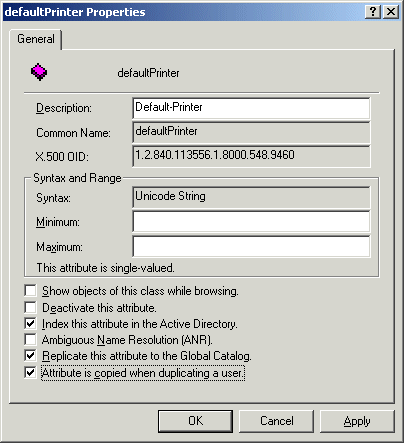
attributes properties page as shown in
Figure 6
. We are going to
allow the attributes value to be copied when you copy a new users
settings so if you have designed your Active Directory OU's around
the physical locations copying a user will also copy the default
printer for the new user.
There are still two steps left to complete our new attribute and
make it usable. We need to add our new attribute to the "user"
class. In the Active Directory Schema Snap-in select the "Classes"
folder and scroll down to the "user" class. Double click to select
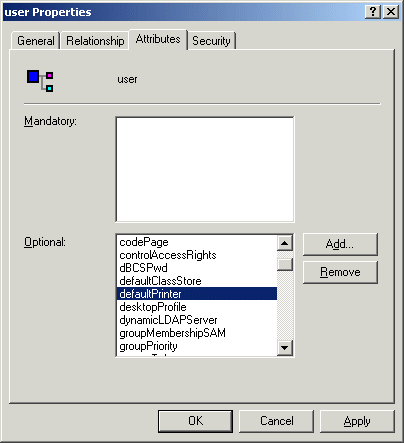
the "user" class properties box and select the Attributes tab as
shown in
Figure 7
. Select the Add button and search for our new
attribute and double click to add to the "user" class, apply then
click ok to close the dialog box.
The final task is to set the security on our new attribute. As we will be allowing the user to update this field we need to allow them permissions on the attribute. Unfortunately this cannot be done from the Active Directory Schema Snap-in so we need to load some of the support tools from the installation cd.
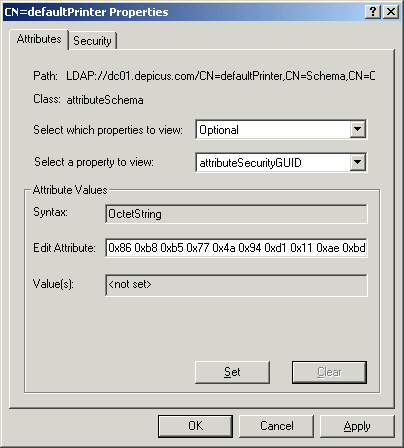
On your server disk (or workstation) in the support directory you will find all sorts of useful tools, one of which is ADSIEdit which we will be using to add the security required for our new attribute. Load up the ADSIEdit MMC and select the "Schema" tree and expand it to find our new attribute. Once you have found our new attribute double click to bring up it's attribute properties as shown in Figure 8 . We want to change the "attributeSecurityGUID" or rather fill it in. Simply select the combo box labelled "Select a property to view" and search for "attributeSecurityGUID". Now we need to edit the attribute by adding "0x86 0xb8 0xb5 0x77 0x4a 0x94 0xd1 0x11 0xae 0xbd 0x00 0x00 0xf8 0x03 0x67 0xc1" in the "Edit Attribute" box and pressing "Set".
If you're wondering where I got this number well it's just really a question of lateral thought process. I know that a standard user can change their Telephone Number in the active directory. Therefore all we need to do is copy that security GUID and transfer it to our attribute.
Automating additions to the schema extension
Adding extensions to the Active Directory Schema manually may seem a rather long winded and error prone procedure but it does give you the benefit of getting beneath the hood and gaining a better understanding of what the schema is and how it works. Microsoft however provides the "ldifde" tool which allows us to progmatically add the extension to the Active Directory Schema although you still need to place the Active Directory Schema in read/write mode. You can edit the registry to set the Active Directory in read/write mode by placing a non-zero value in "HKEY_LOCAL_MACHINE\SYSTEM\CurrentControlSet\Services\NTDS\Parameters\Schema Update Allowed".
Figure 9 "defaultPrinter.ldf" shows the fields required to add our extension. The script is run as a command line option from ldifde which is installed by default on a domain controller and runs a two stage process. The first part up to the line "schemaUpdateNow: 1" adds our new attribute and the second part adds the attribute to the user class with a final call to schemaUpdateNow which refreshes the schema.
The file "AddNewSchema.cmd" takes one command line parameter, your domain, and replaces "DC=ChangeMe" with, for example, "DC=Depicus,DC=Com" in the "defaultPrinter.ldf" or you can edit the ldf file directly. A point worth remembering is that manual edits to the schema don't update automatically as the schema is loaded into memory. Any changes that are made are written to disk first and every five minutes the schema refreshes it's memory from disk so, if like me, you are sitting there thinking why haven't my updates been made then go get a coffee and come back in five minutes.
Populating the attribute
Now we have our default printer attribute we need to fill it with
data. We could bulk insert a default printer and for those setting
up or migrating users this is an option. It is possible to script
the initial insertion of data. Figure 10
is a script that will
insert a printer for all members of an OU so all you need to do is
change the OU "AddingPrinters" to the name of the OU where you have
placed your users.
There is another way that is slightly cheating but if we cannot make
life easy! This cheat is a bit of a slight of hand; first create an
OU called "AddingPrinters" then select all your users and move them
to this new OU. Run the script then move them back again. Yes I know
it's not the best solution but if your default setting for the
"Group Policy refresh interval for users" is still undefined then
the default 90 minutes will more than suffice to get the job done
and move the users back.
Daily support
While bulk insertion helps for the initial stages of rollout we need to add a method of allowing day to day support for adding and changing the data for our attribute. As Microsoft provides an active directory management to add and edit users (Active Directory Users and Computers) we may as well make use of it. This is a two stage process that needs to be done on each Domain Controller that will be used to edit your Active Directory users. A personal preference is to use the same Domain Controller to change user settings but latency in the replication process may dictate that you make changes on more than one Domain controller. You could also pack up the two scripts in an MSI installer and add this MSI package to the group policy for your domain controllers.
The first thing we need to do is add a script to the "System32" directory which will allow Domain Administrators to add or change the data in the defaultPrinters attribute. Figure 11 shows the script which brings up an input box with the old default printer and an edit box pre filled in but with the option to add a new default printer.
Next we need some method of calling our newly created script. Thankfully Microsoft have been rather helpful again and allowed us access to the Context Menu via a call to the "adminContextMenu" of the "DisplaySpecifiers". Figure 12 is a script that connects to the "DisplaySpecifiers" and then loops through the "adminContextMenu" to check if we have already installed our context menu. This is important because if we didn't exit then each time the script is run it would add our menu item again. While I was testing I noticed that although the menu item was only created once the menu count was incremented. If the script doesn't find our menu item then the script then adds itself to the end of the list. If you go to the "Active Directory Users and Computers" and right click on a user you should see a new menu item "Default Printer..." which when selected will bring up the script we placed in the "System32" directory. I could have written a small application to do this which may have looked neater and allowed me to query all the active directory printers and list them in a combo box.
Logging on and off
Having done all of this work it's now time to make use of our new attribute in a real world situation. The logon script is quite basic, simply pulling out the default printer name from the Active Directory and adding a new printer connection then setting that new connection as the default printer. One of the reasons I state that this is a Windows 2000 solution only is that in Windows 9x/Me, the printer driver must already be installed on the machine for the "AddWindowsPrinterConnection" method to work. If the driver is not installed, Windows returns an error message. This is an enterprise solution so Windows 2000 is really your base line here. Of course if there is no default printer then we exit before trying to set a new printer. We could have checked the users registry for the existence of a default printer and matched it against our Active Directory default printer data but as I want the logon script to run as fast as possible I don't bother. We have a bit more time in the logoff script as most users can logoff and walk away, the computer taking care of shutting down.
What, I hear you ask, if the user changes the default printer, aren't you just going to set it back to what is stored in the Active Directory? Enter the logoff script. Here we can query the registry for the default printer and we know that it's the last default printer the user wanted as we are logging off. Once we have parsed the information from the registry if the user has a default printer we just post this information back into the Active Directory hence the need for the security of the attribute to be changed. This is because the login and logoff scripts runs in the security context of the current user.
Conclusion
If you have ever had to spend 10 minutes explaining to a user how to add or change a default printer or worst still had to send somebody out to a remote site to set up printers then this extension will dramatically cut down the amount of work involved in desktop management. It also allows the added bonus of documenting your users default printers.
About the author
Brian Slack is an IT Consultant who specialises in Windows, Mac and Linux deployment, migration and administration. You can contact him at brian dot slack at depicus dot com or on his website at https://www.depicus.com.
© 2002